- Features
- Our Hometown Platform Overview
- iOS and Android Apps
- Social Media Autopost
- Audio Articles
- Customer Support
- Get Started
- Current Customers
- About Us
- Account
Social Media Sharing with FS-Poster
The following post outlines various ways to share content manually or with schedules using the FS-Poster plugin for WordPress.
Sharing from the All Articles List
- Log in to your WordPress dashboard.
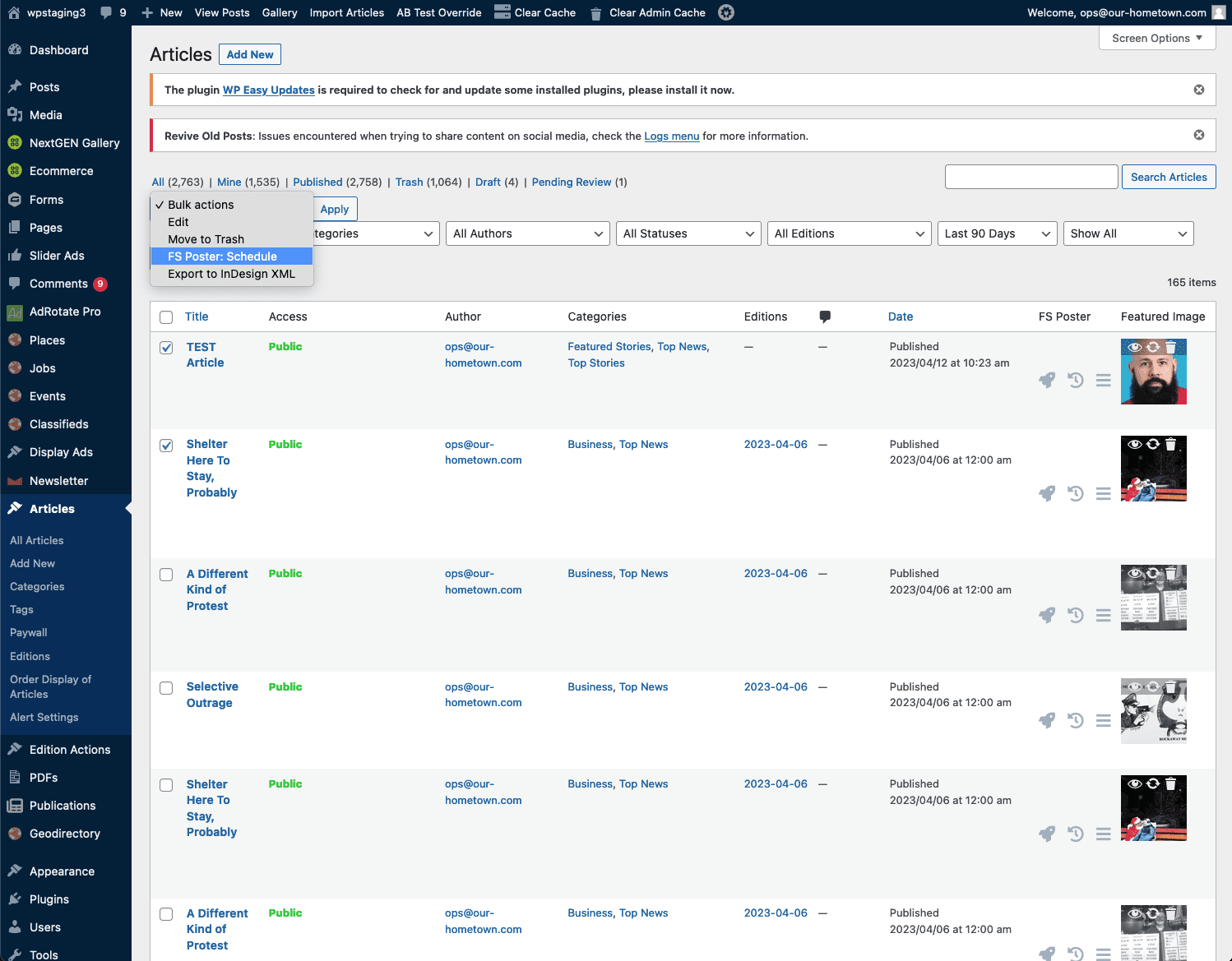
- Click on “Articles” and then “All Articles” to access the Articles listing.
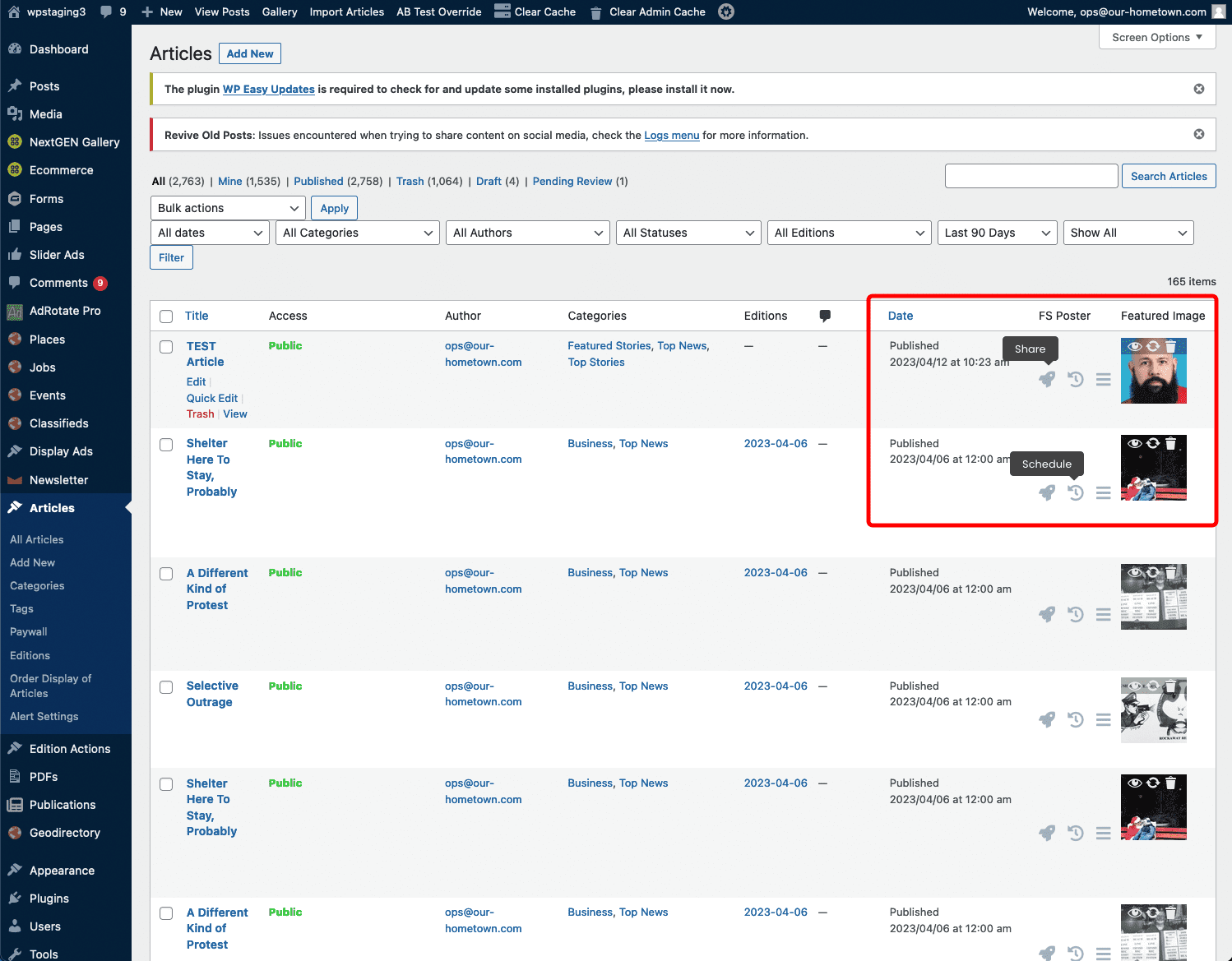
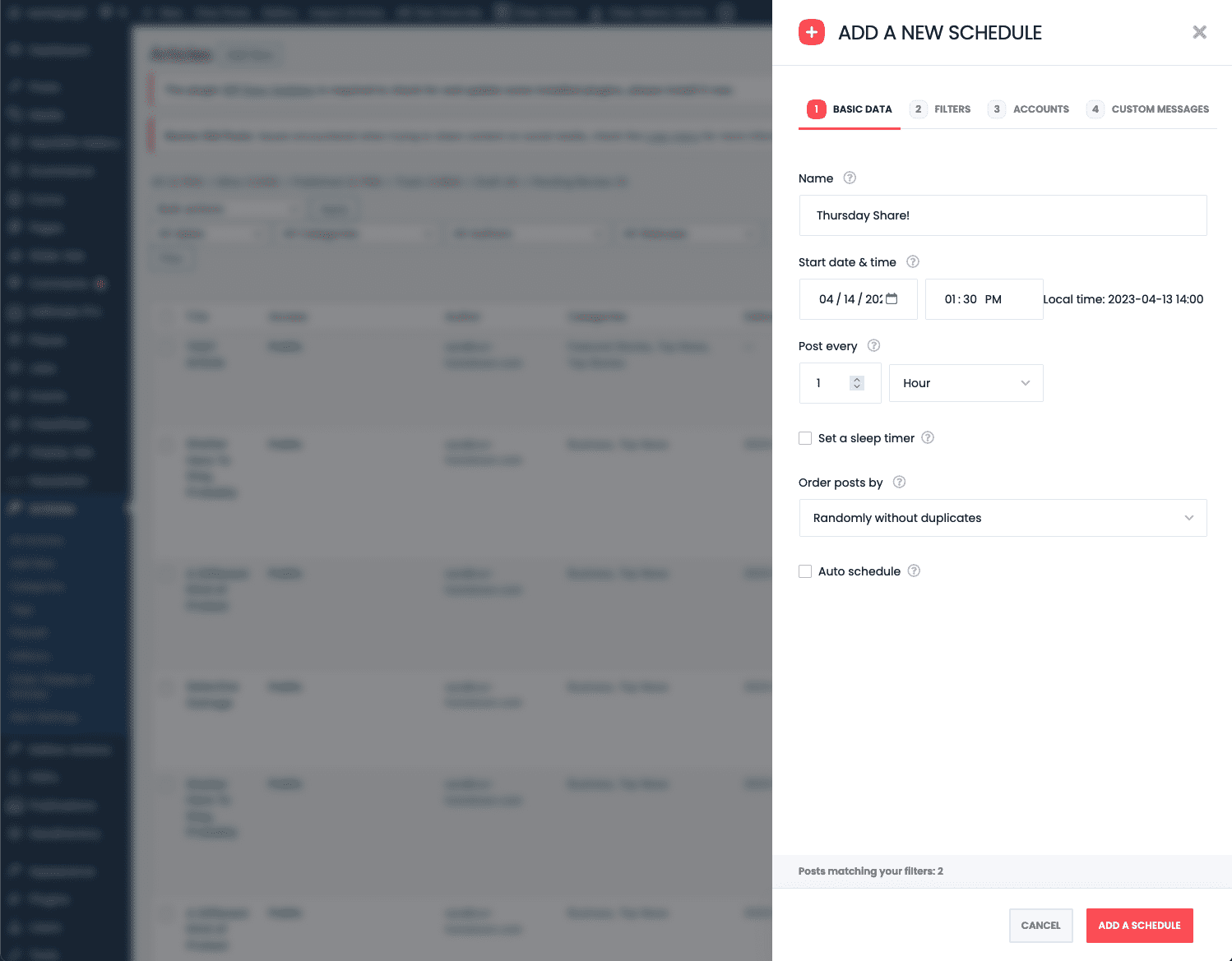
- Once there you will notice that there is now an FS Poster column with several icons. If this column is missing, click the Screen Options tab at the top of the page to reveal the column settings and tick any that are missing.
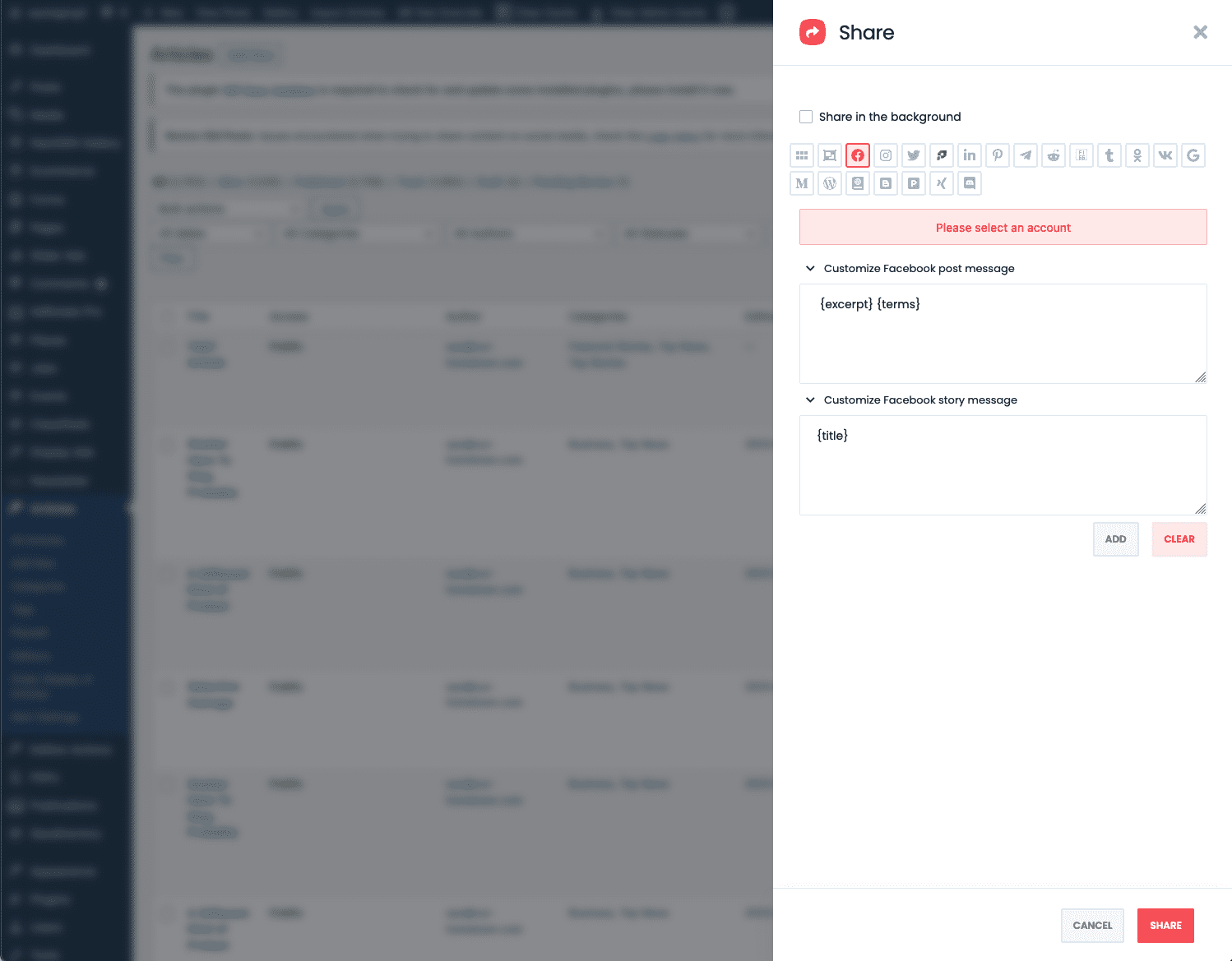
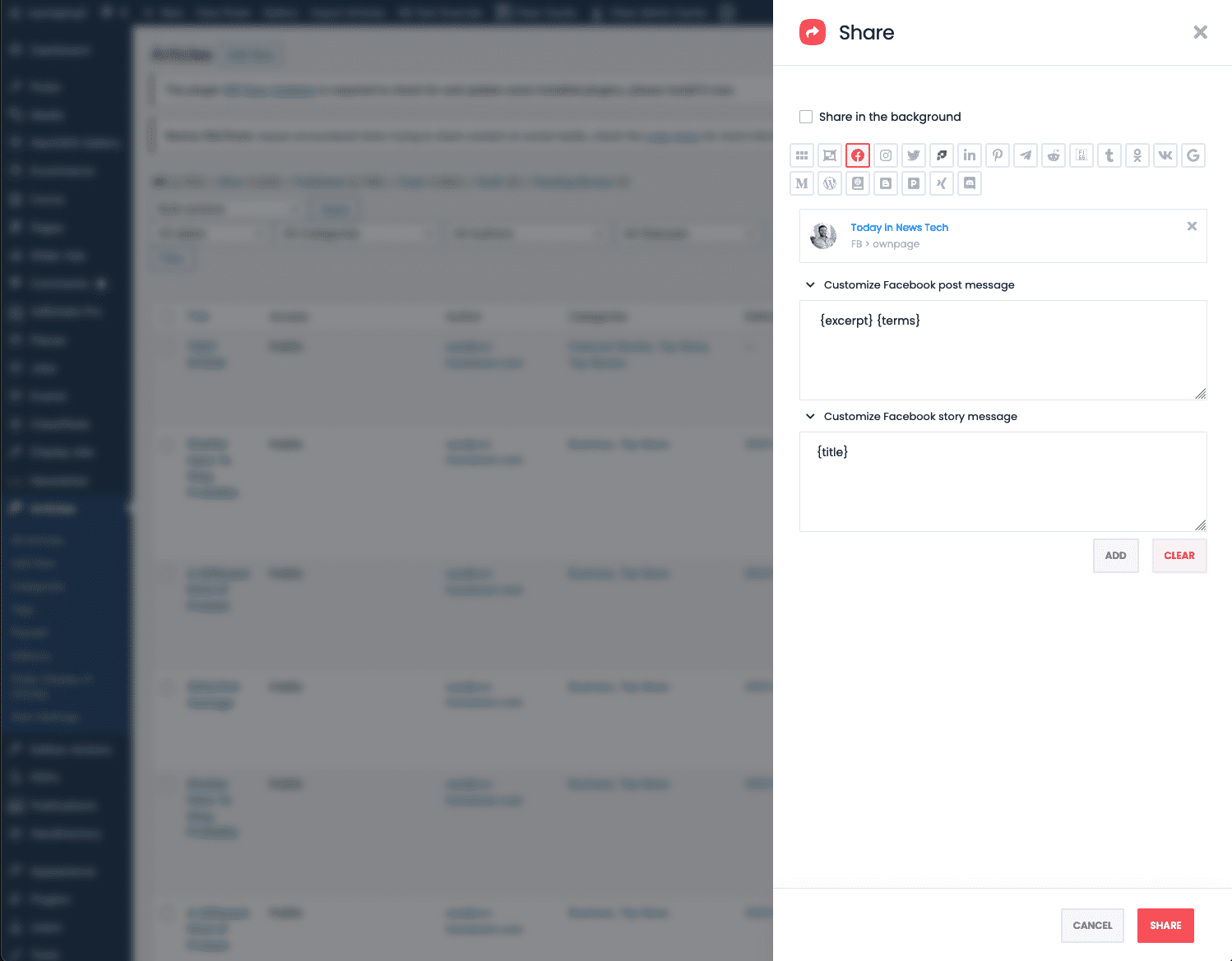
- The Rocket icon allows you to share an individual story immediately to any account and provides the custom message field.
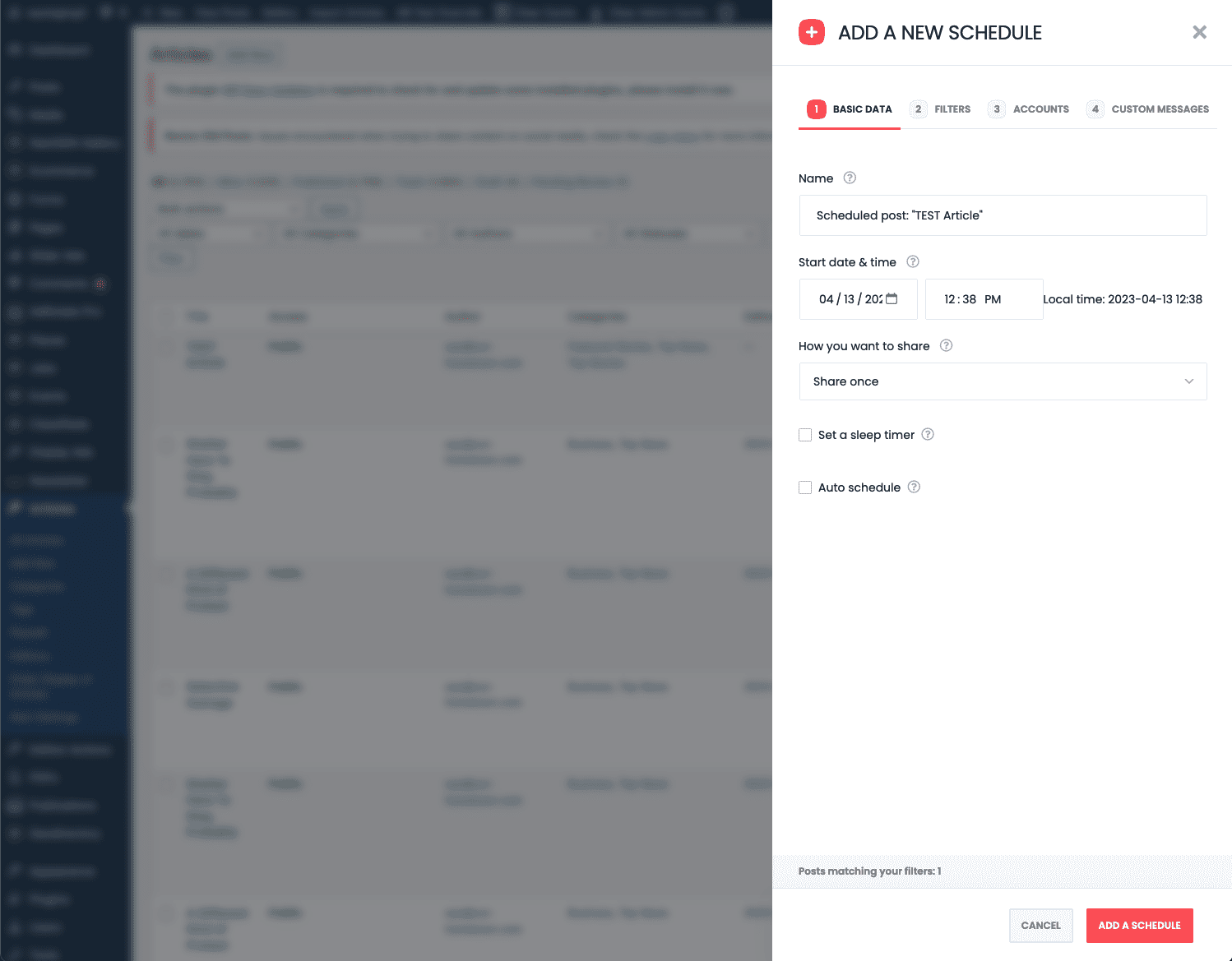
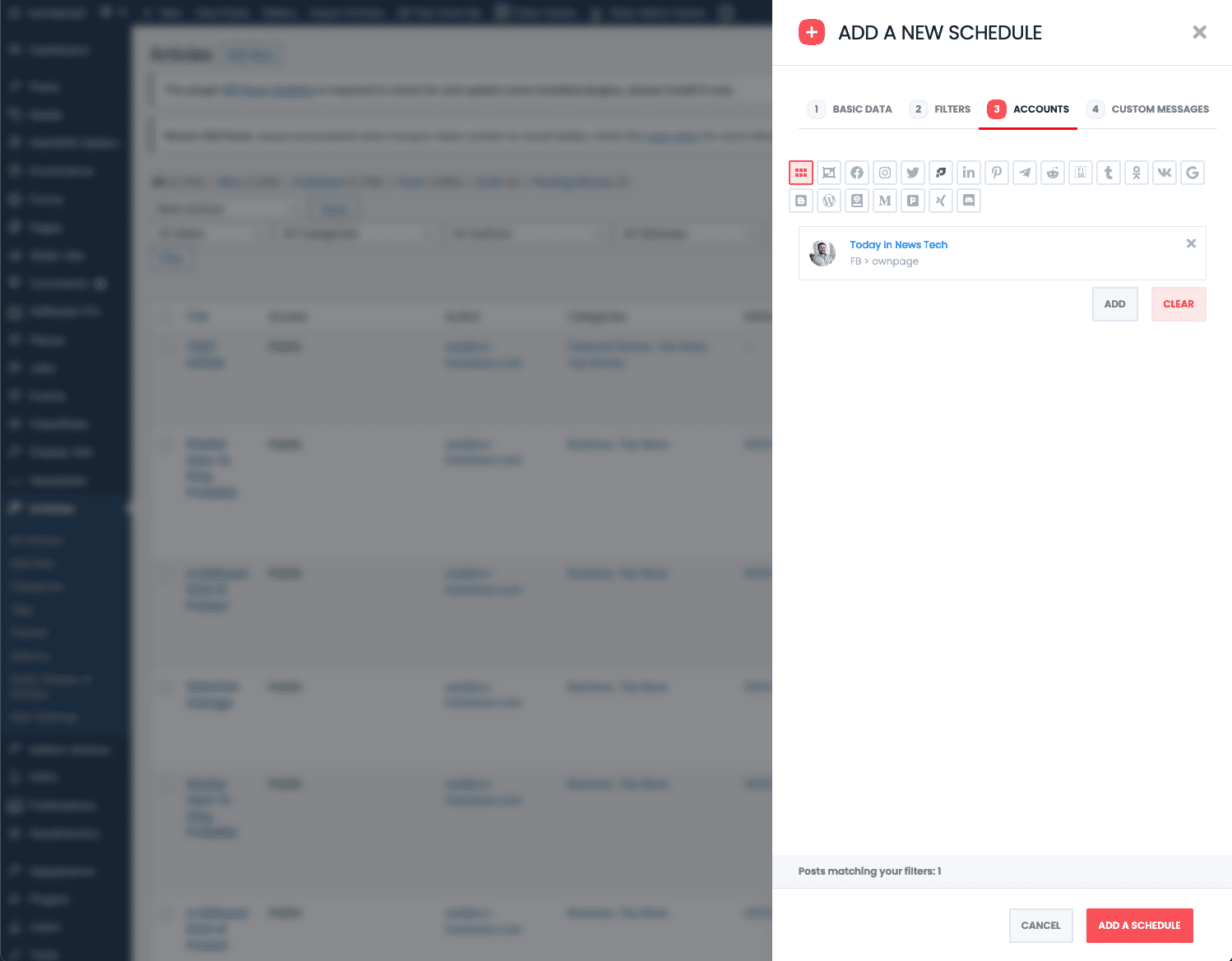
- The Clock icon allows you to share with the same options, but can be scheduled into the future.
- One aspect to note, in the case of Facebook or Instagram you cannot choose to share to a story vs. post. This setting is found in the general settings for Facebook discussed in this post.

Sharing from the Article Editor
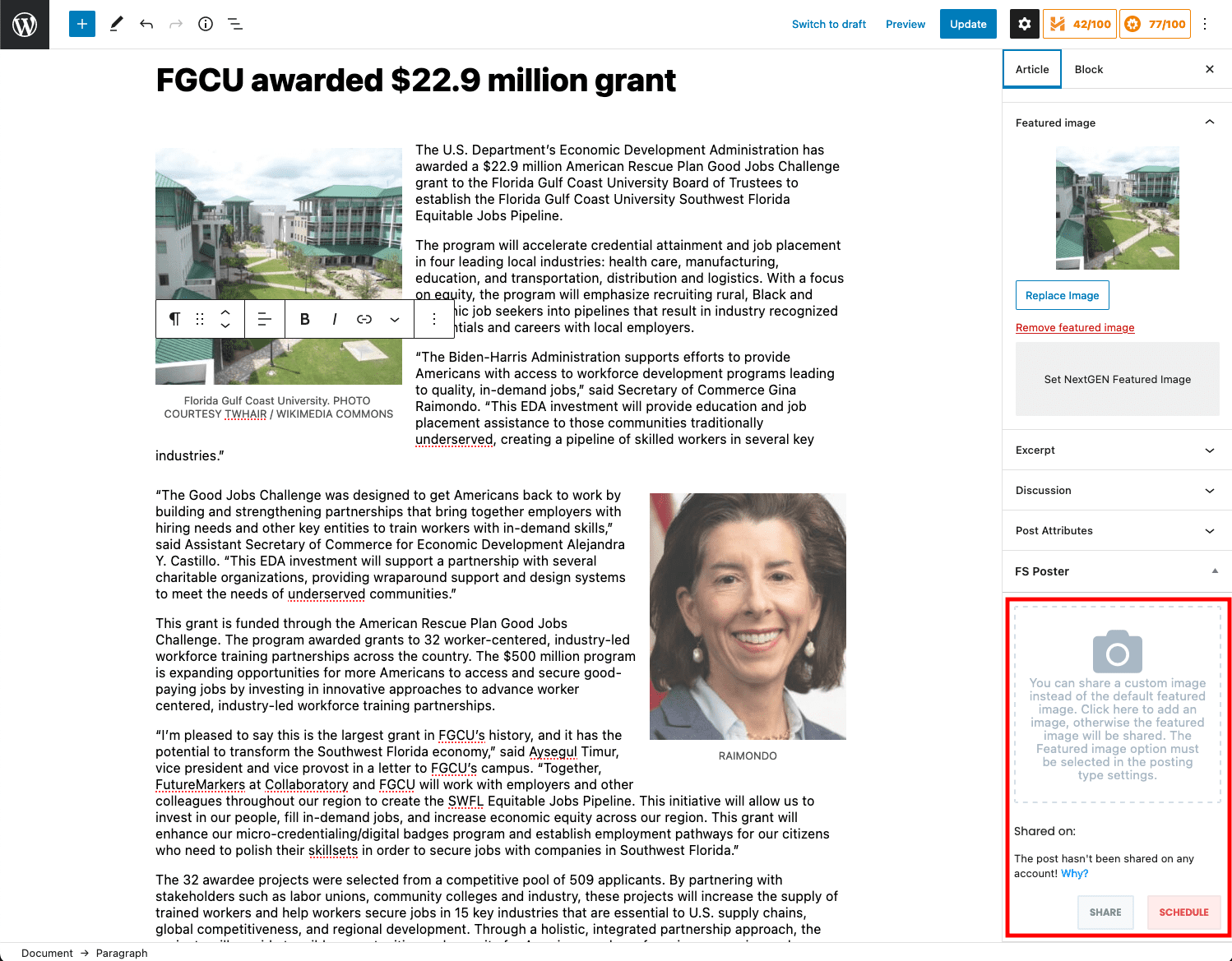
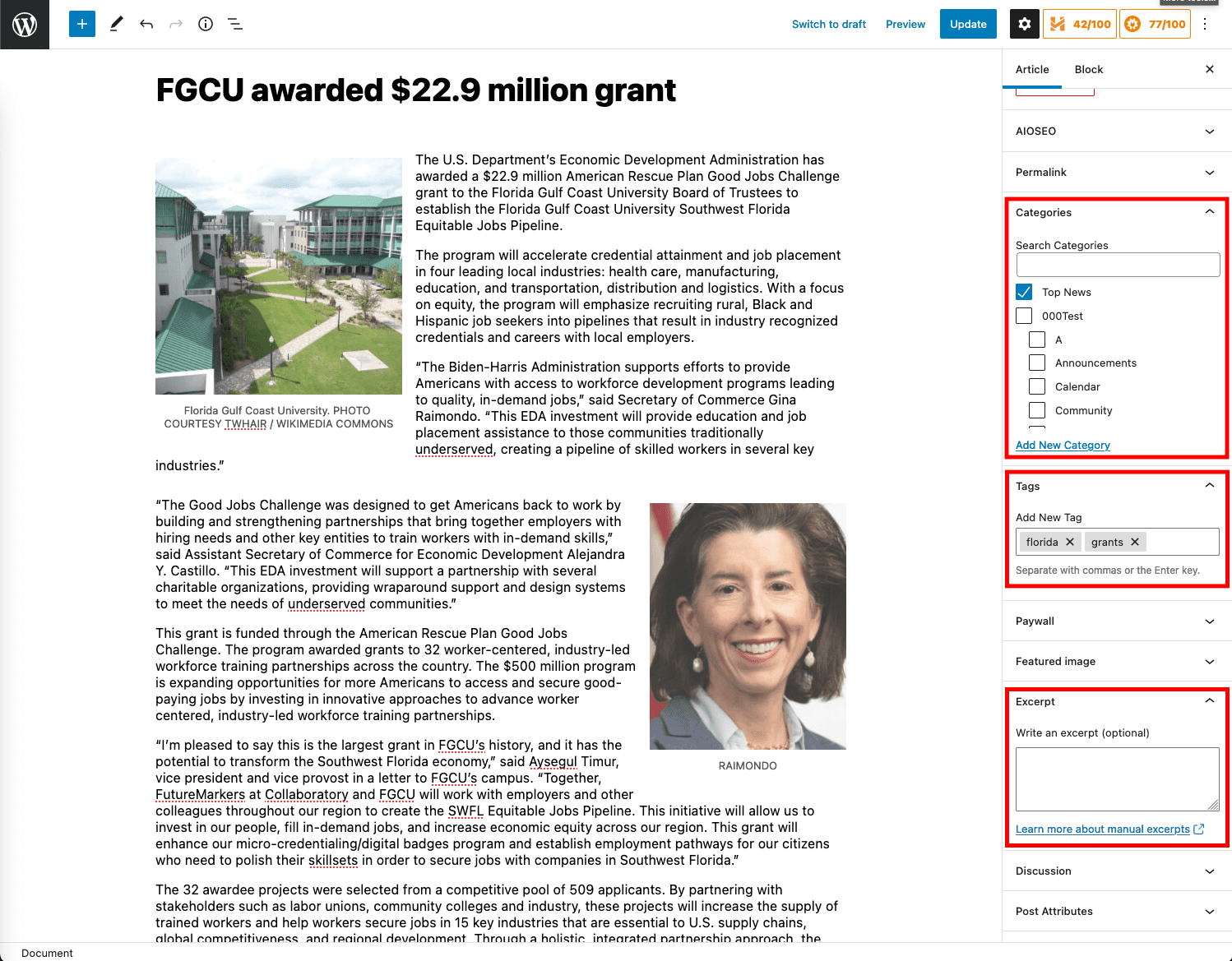
You can also choose to post an article immediately or via schedule directly from the Article Editor.
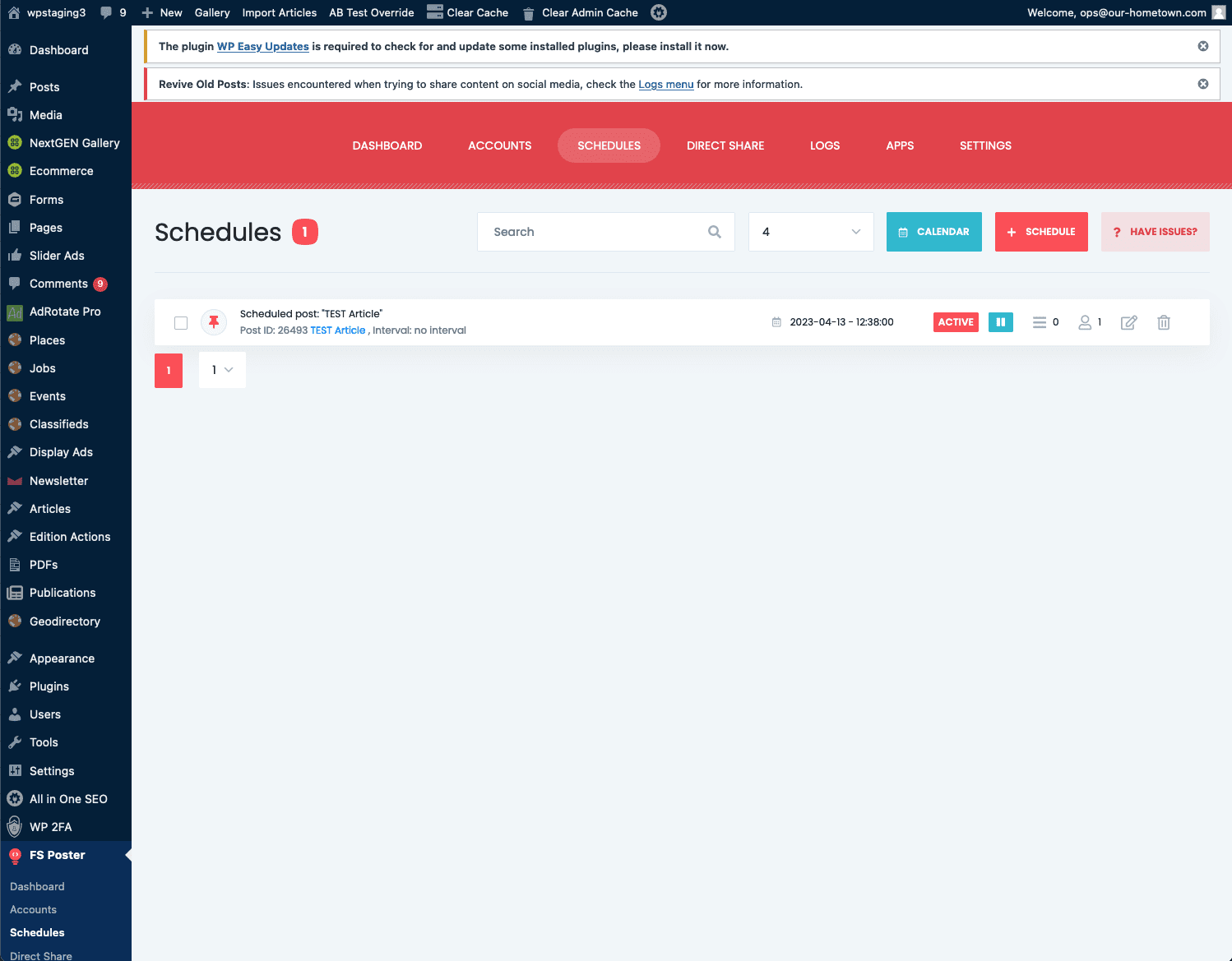
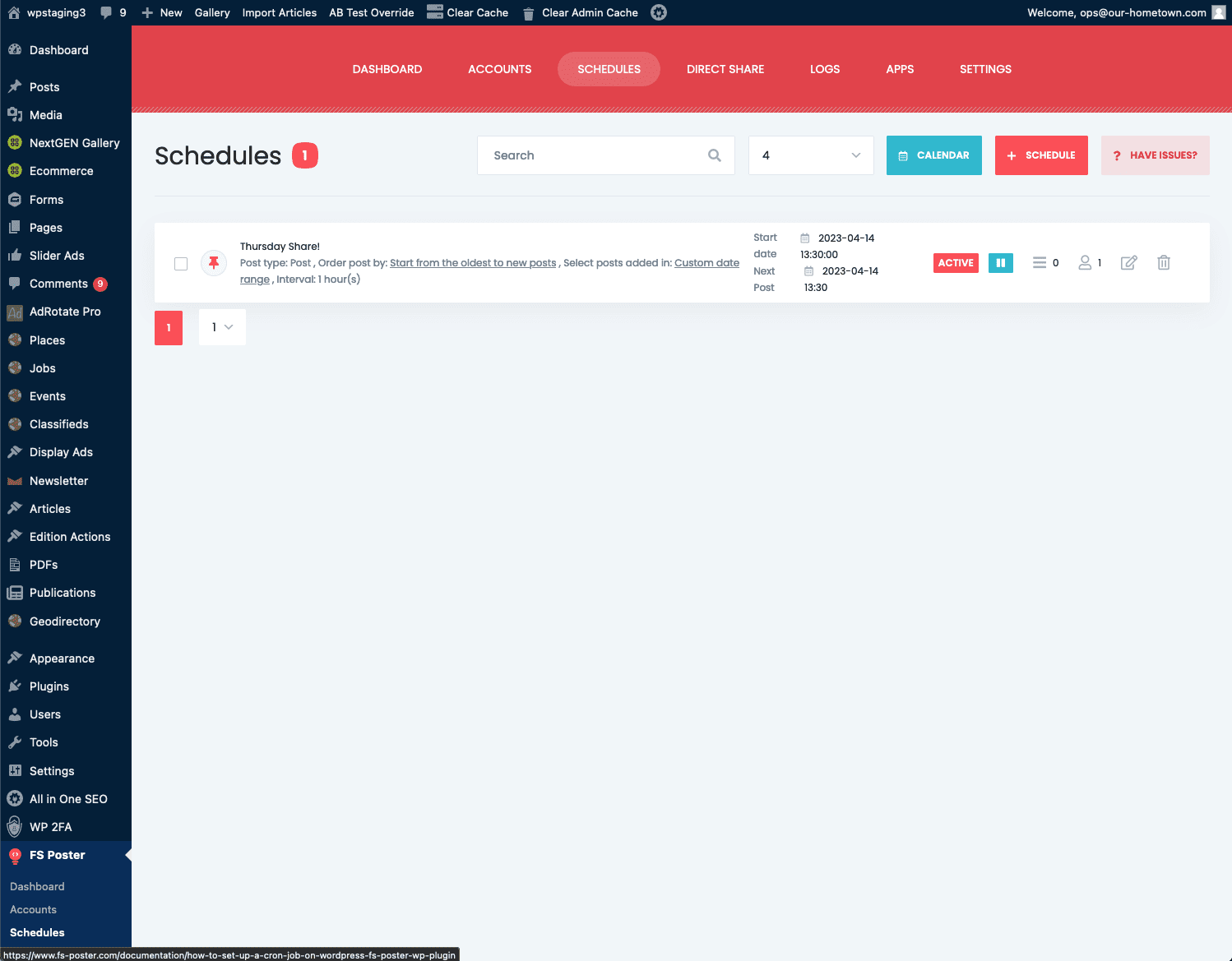
Schedules and Logs Panel
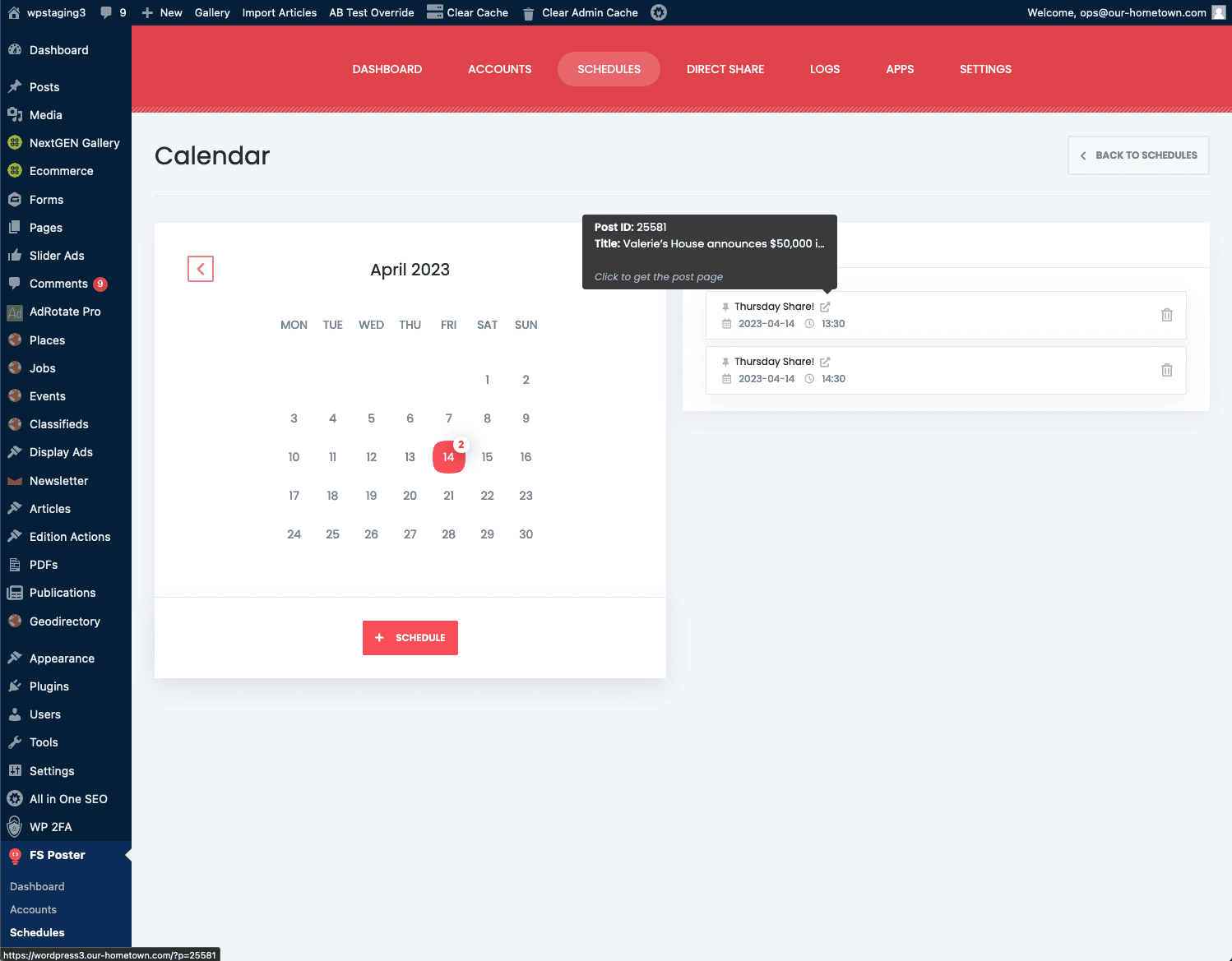
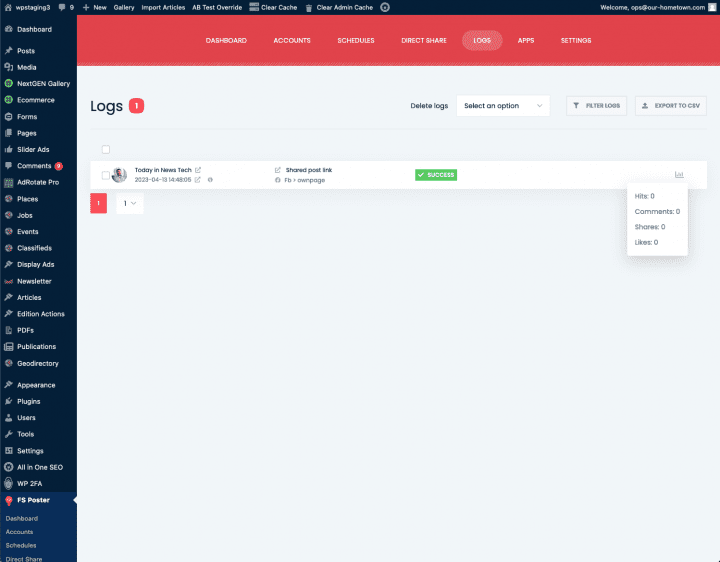
Direct Share from FS-Poster
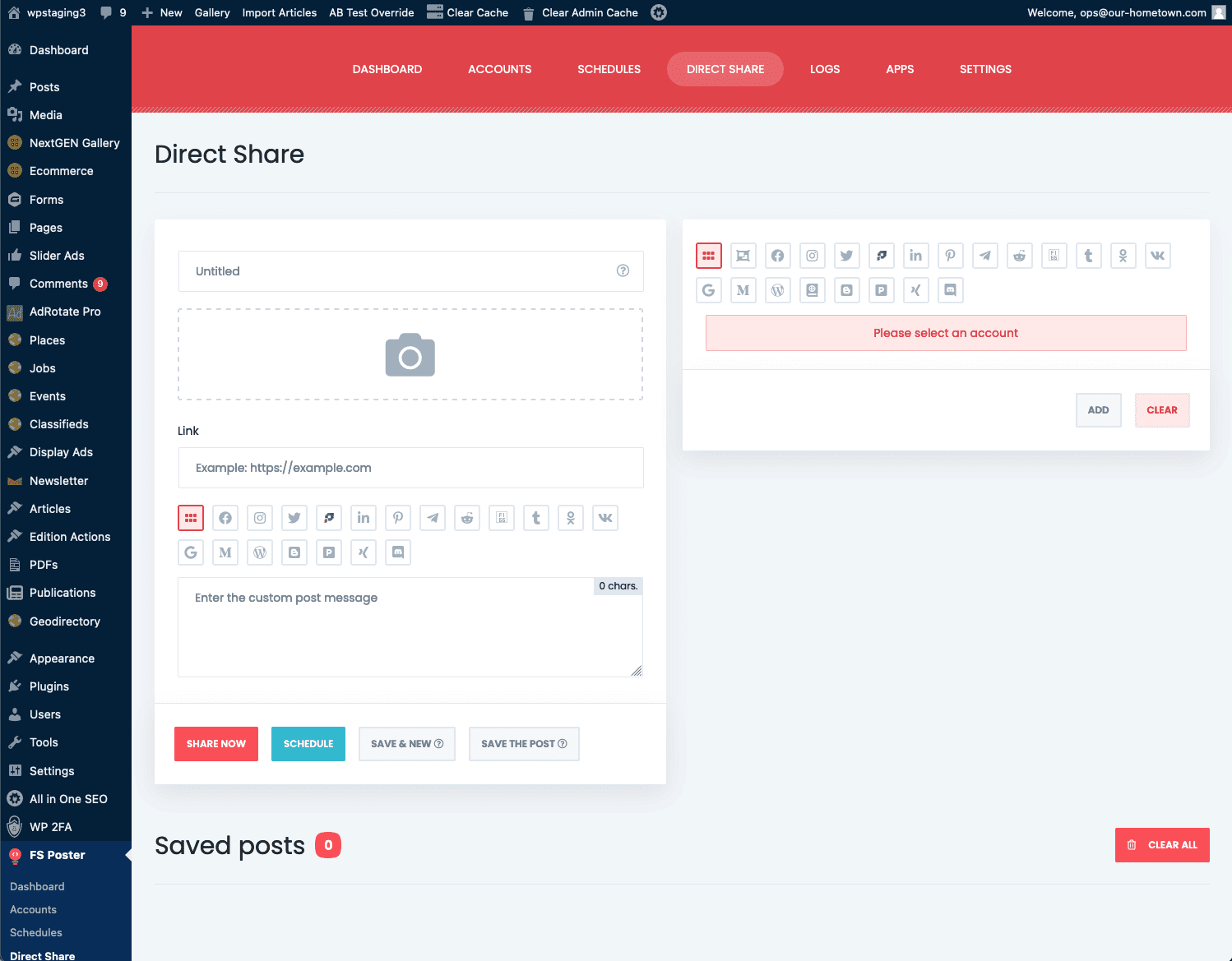
The Direct Share panel allows you to share to the same accounts without writing an actual post. Here you can craft a post with a headline, custom image and a custom message to share along with any link you would like.
The share and scheduling options are the same for Direct Shares as for post shares.