
Enhancing Security: A Guide to Two-Factor Authentication (2FA)

|
Click play to LISTEN to the article below
|
At Our-Hometown Web Publishing, protecting your newspaper’s digital integrity is our top priority. To ensure your website remains secure against unauthorized access, we are introducing Two-Factor Authentication (2FA) for all backend dashboard logins.
What is 2FA?
Standard passwords can sometimes be guessed or stolen. 2FA adds a second layer of protection by requiring not just something you know (your password), but also something you have (your phone or email access).
How to Log In with 2FA
Once 2FA is active on your account, the login process will look like this:
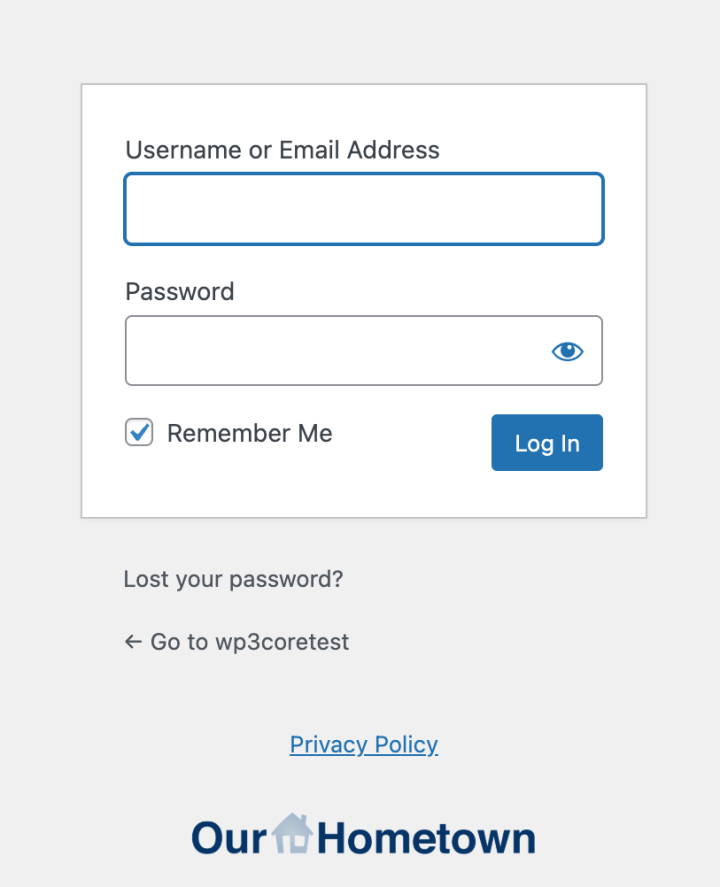
- Enter Credentials: Log in with your username and password as usual.
- Verify Identity: You will be prompted to enter a 6-digit verification code.
- Submit: Enter the code from your email or app to gain access to the dashboard.
Your 2FA Options
We offer two methods for receiving your verification codes. You can choose the one that best fits your workflow:
| Method | How it Works | Best For… |
|---|---|---|
| Authenticator App | A code is generated on an app (like Google Authenticator or Authy) on your smartphone. | High security and speed. Works even without cell service. |
| A one-time code is sent directly to the email address associated with your account. | Users who prefer not to install new apps on their phones. |
Managing Your 2FA Settings
You have the flexibility to switch between Email and Authenticator App verification at any time.
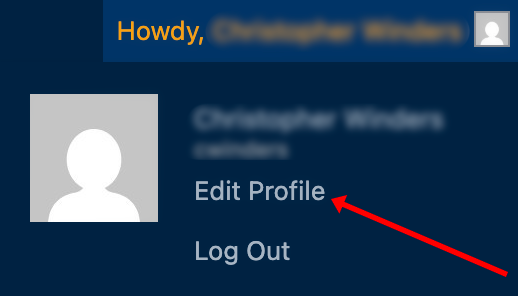
- Navigate to Profile: Log into your WordPress dashboard and go to Users > Your Profile.
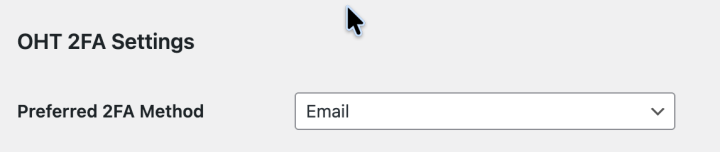
- Find 2FA Settings: Scroll down to the Two-Factor Authentication section.
- Select Your Method: Choose your preferred method from the radio buttons or dropdown menu.
- Save Changes: Be sure to click Update Profile at the bottom of the page.
Setting Up an Authenticator App
If you choose the Authenticator App option for maximum security, follow these steps to link your device:
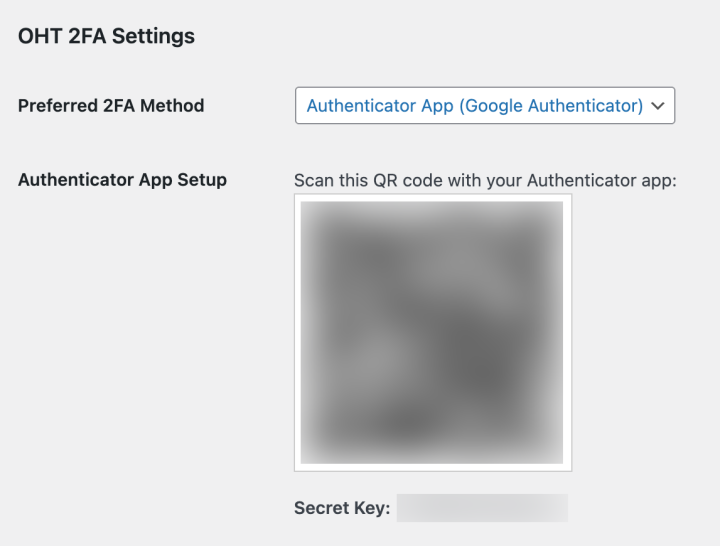
- Step 1: On your profile page, select “Authenticator App.” A QR Code and a Text Setup Code will appear on your screen.
- Step 2: Open your preferred app (Google Authenticator, Authy, etc.) on your smartphone.
- Step 3: Tap the “+” icon in the app and select “Scan a QR Code.”
- Step 4: Point your camera at your computer screen to scan the code.
- Note: If your camera isn’t working, you can manually type in the provided Setup Code instead.
- Step 5: Once the account “[Your Website]: username” appears in your app, enter the current 6-digit code into the confirmation box on your WordPress profile to verify the link.
Pro-Tips
- The 30-Second Rule: Authenticator codes refresh every 30 seconds. If the code is about to expire (usually indicated by a blinking red timer in your app), wait for the next code to ensure it doesn’t “time out” while you’re typing.
- Switching Back: If you ever lose your phone or find the app inconvenient, you can always log back in (using a backup method or admin help) and switch your setting back to Email.
Frequently Asked Questions
Which Authenticator apps do you recommend? We recommend Google Authenticator, Microsoft Authenticator, or Authy. All are free and available on the iOS App Store and Google Play Store.
What if I don’t receive my email code? First, check your “Spam” or “Promotions” folders. If it hasn’t arrived within 2 minutes, click “Resend Code” on the login screen. Ensure that @our-hometown.com is whitelisted in your email settings.
Will I have to do this every single time I log in? You can check the “Remember this device” box during login. This will keep you authenticated on that specific browser for 30 days, so you won’t need a code every morning.
I’m locked out! What do I do? If you lose access to your phone or email, don’t worry. Please contact the Our-Hometown Support Team at ops@our-hometown.com for further assistance.
NOTE: Never share your 2FA code with anyone. Our-Hometown staff will never ask you for your 6-digit code over the phone or via email.


 for all backend dashboard logins. What is 2FA? Standard passwords can sometimes be guessed or stolen. 2FA adds a second layer of protection by requiring not just something you know (your password), but also something you have (your phone or email […])





Recent Comments