
PDF Export Guide: Optimizing for Our-Hometown Web Publishing
To ensure the highest level of precision during the digital extraction process, Our-Hometown Web Publishing has established a standardized PDF export workflow. Following these guidelines ensures that your editorial content is captured accurately, fonts are rendered correctly, and images maintain their full integrity for your web audience.
1. The Recommended Standard: OHT PDF Export Preset
For the most reliable results, we provide a standardized Adobe PDF Preset (.joboptions). This file automatically configures all technical requirements, including compatibility modes, font embedding, and transparency flattening.
Installation Instructions:
- Download: Save the OHT-PDF-Export.zip file to your workstation.
- Extract: Locate the ZIP file on your computer and double-click (or right-click and select “Extract”) to reveal the OHT-PDF-Export.joboptions file inside.
- Load: In Adobe InDesign, navigate to File > Adobe PDF Presets > Define…
- Import: Click Load, select the downloaded file, and click Done.
Usage: When exporting your final layout, go to File > Export, select Adobe PDF (Print), and choose “OHT PDF Export” from the Adobe PDF Preset dropdown menu.
2. Manual Configuration & Audit Guidelines
If you are incorporating our requirements into an existing custom workflow, please audit your settings to ensure they match the following specifications:
General Specifications
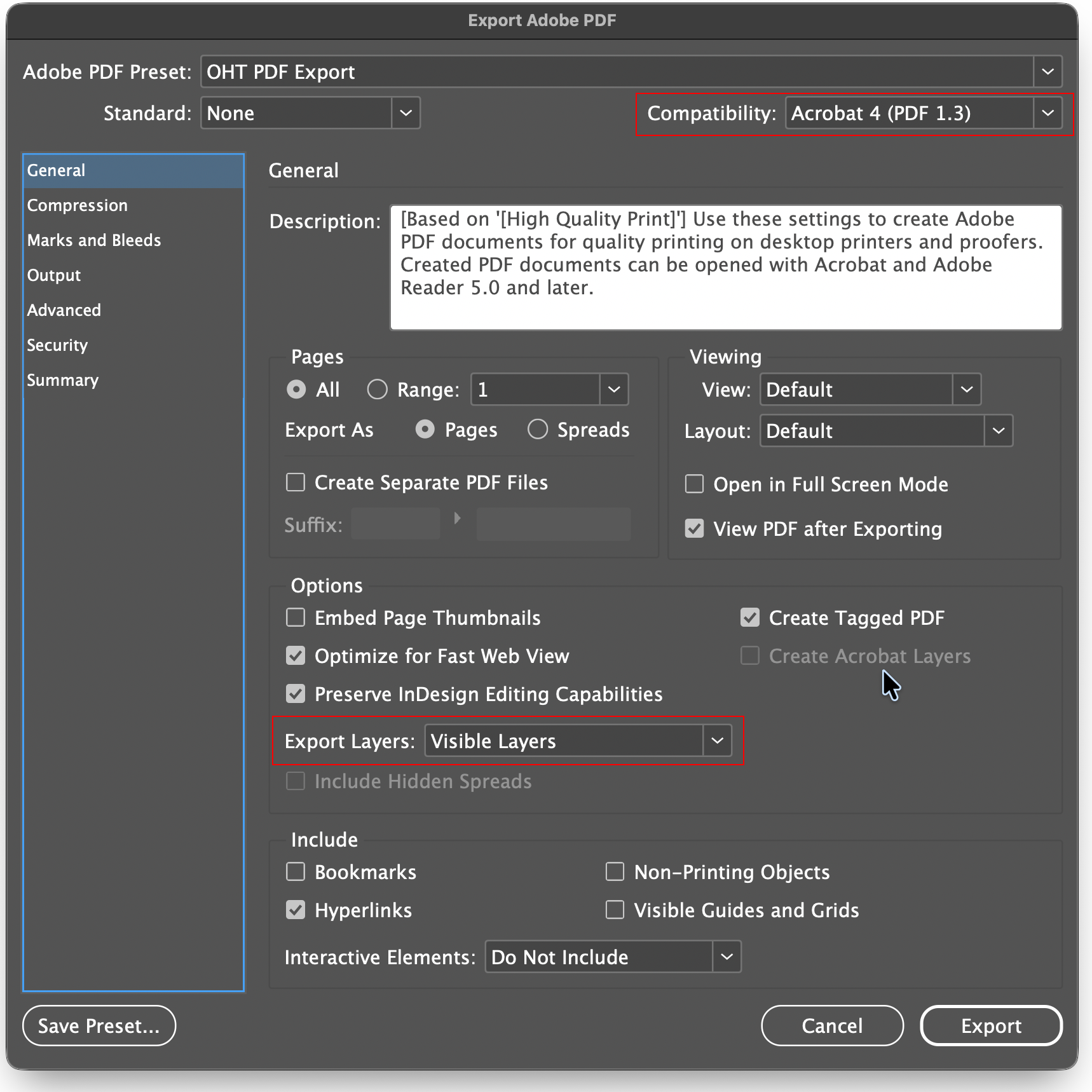
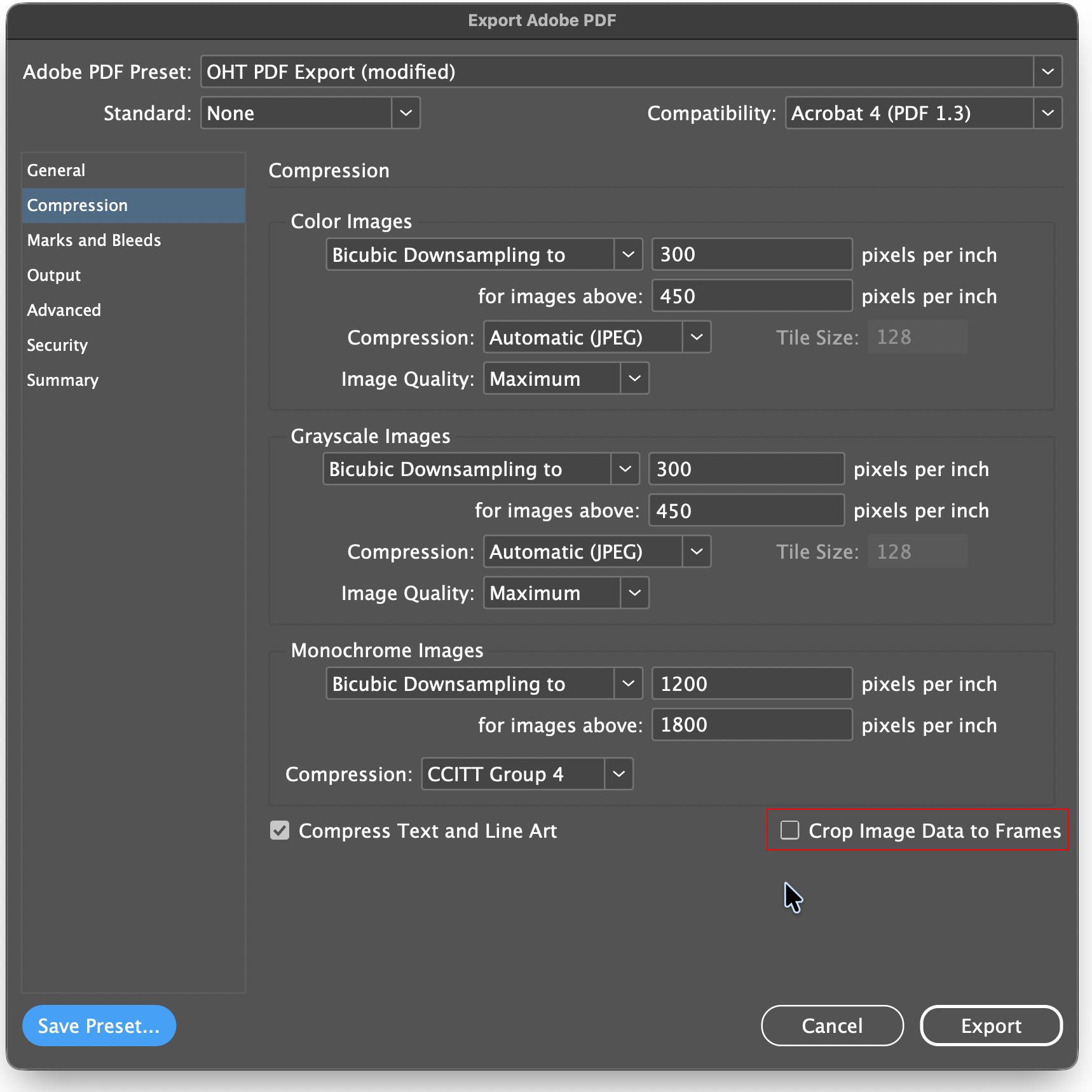
- Compatibility: Must be set to Acrobat 4 (PDF 1.3).
- Technical Note: This legacy standard ensures that text layers remain accessible to our extraction tools without being obscured by modern transparency containers.
- Export Layers: Set to Visible Layers. This prevents non-printing “slug” or “pasteboard” content from interfering with the extraction of the text elements.
Compression & Image Handling
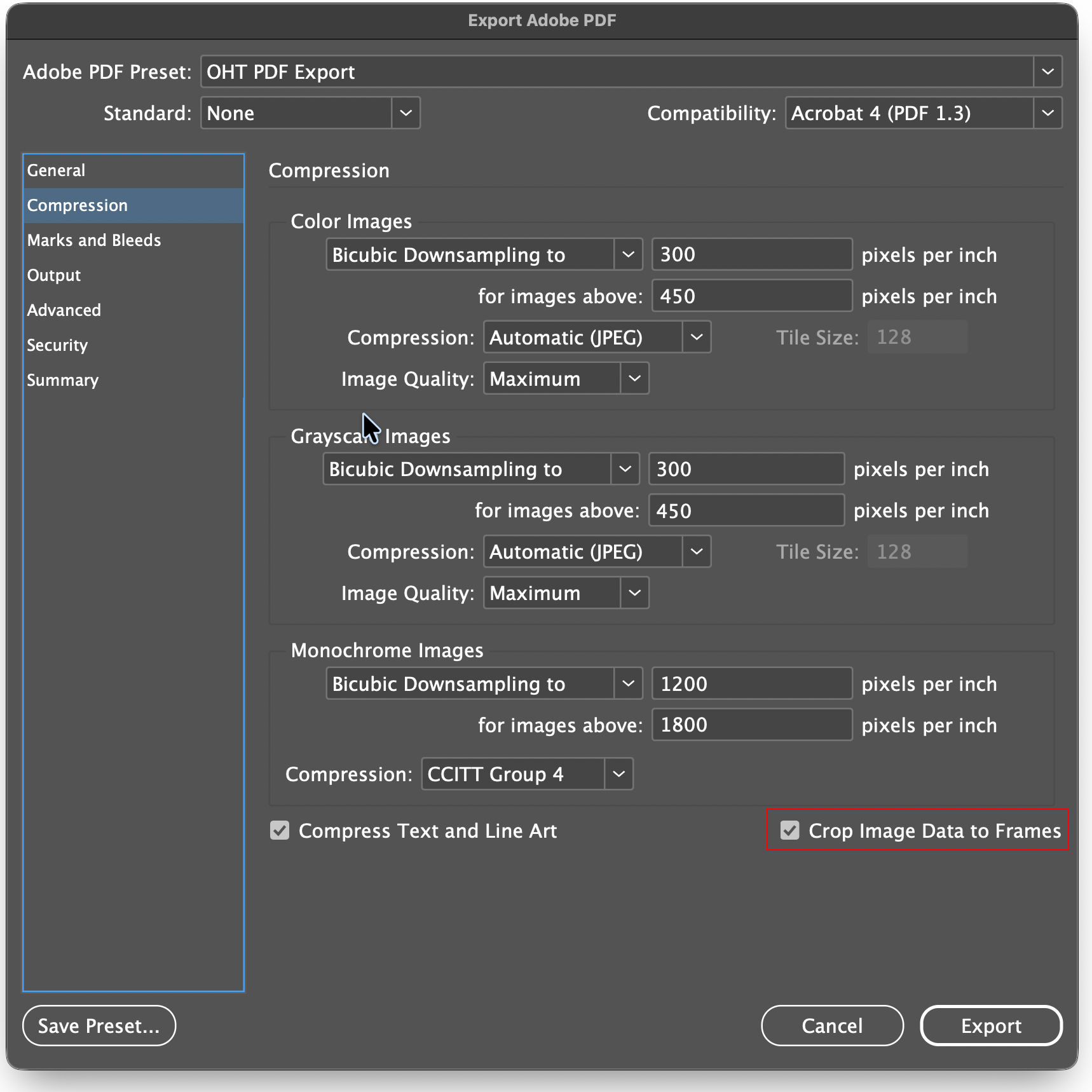
- Compression: Use Bicubic Downsampling to 300 ppi with Maximum JPEG Quality.
- Crop Image Data to Frames: (Default: Checked)
- The Full-Extraction Option: By default, our preset is configured to crop image data to the frame to keep file sizes manageable. However, if you prefer that we extract the full, uncropped source photo for use on your website, simply uncheck this box. This allows our system to access the entire original photograph even if it is tightly cropped in your print layout.
Font & Transparency Integrity
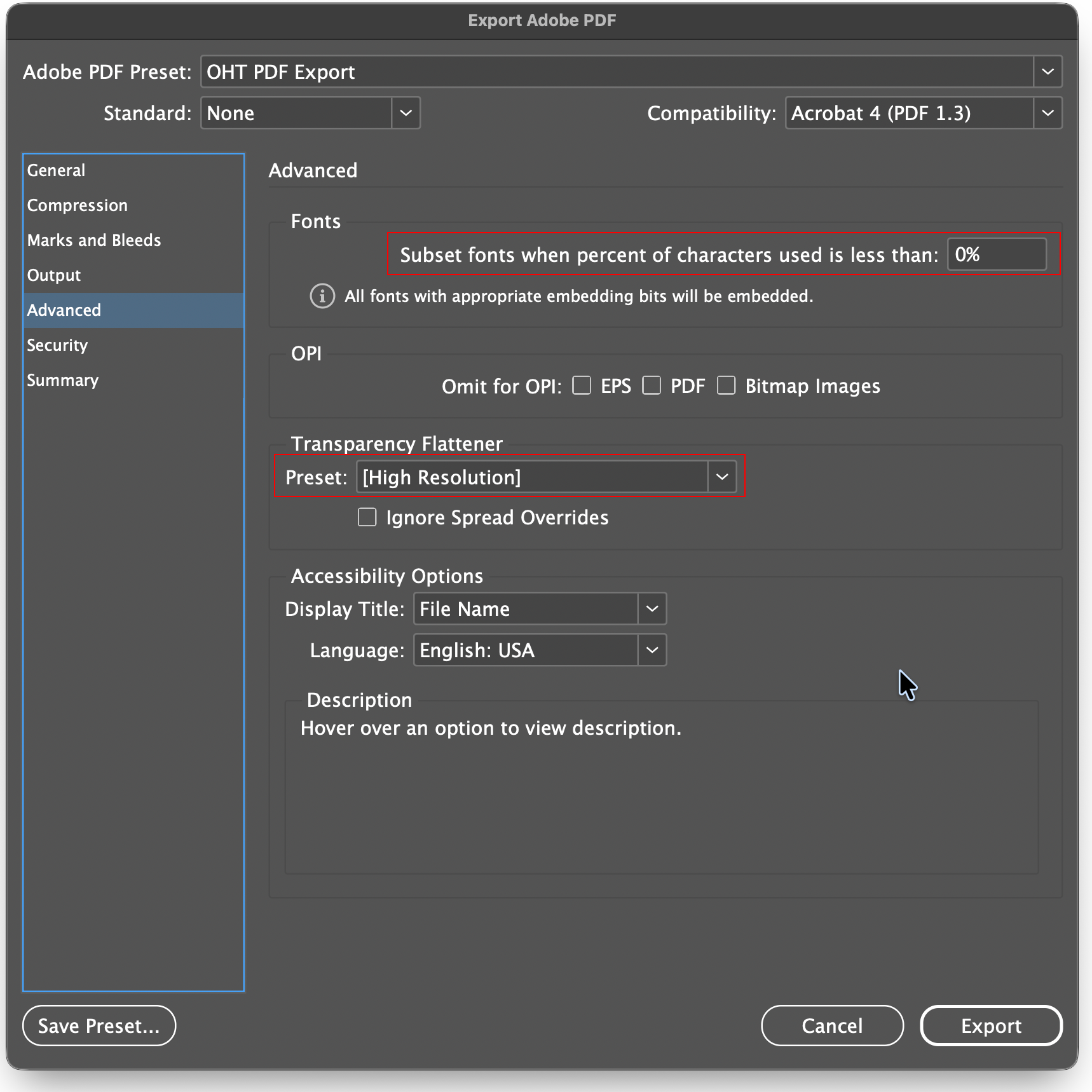
- Font Subsetting: Set to 0%.
- Requirement: This forces the embedding of the complete character set, eliminating the risk of “garbled” text or missing glyphs during the conversion to web content.
- Transparency Flattener: Set to High Resolution.
- Requirement: Since Acrobat 4 does not support live transparency, this setting ensures that text overlapping transparent elements remains “Live” and searchable rather than being rasterized into an image.
3. Content Integrity: Best Practices
To maintain the highest data quality, please observe the following “Do Not” rules during your production process:
- Do Not Convert Text to Outlines: Our extraction engine requires “Live” font data. Converting text to paths/outlines renders the content unreadable by our system.
- Minimize Hidden Layers: Ensure that “ghost” text boxes or old versions of stories are deleted rather than simply hidden behind other objects. Our tools may still attempt to extract data from overlapping hidden elements.
4. Managing External Advertising Assets
Display advertisements provided by third-party agencies often contain complex nested PDF data or non-standard fonts that can disrupt the extraction of surrounding editorial content.
- The Rasterization Standard: If a specific advertisement consistently causes PDF errors or contains “invisible” OCR text, we recommend opening the ad in Photoshop at 300 dpi (CMYK) and saving it as a High-Quality TIFF or JPG.
- The Result: Placing this flattened image into your InDesign layout removes all problematic background code while preserving print and web quality.
Technical Support — If you require assistance installing the OHT PDF Export preset or would like a member of our team to review your current export settings, please contact our production support department at ops@our-hometown.com.


. This file automatically configures all […])





- ← The Metered Paywall Problem in the Age of AI
- Drowning in Email? Turn Any Message Into a Website Draft. →
Recent Comments